Import & update lots from a spreadsheet
When you need to change many lots at once - fix a batch of estimates, tidy up descriptions, mark a run of lots as featured - you don’t have to open them one by one. Upload a spreadsheet, tell Bidvise which column means what, review exactly what will change, and apply it in one pass.
Import works on the lots of a single auction. Rows in your file are matched to existing lots by lot number, and the columns you map update the matching lot and its item. Nothing in your catalogue changes until you’ve seen a full, row-by-row preview and pressed Apply - so it’s safe to upload a file just to see what it would do.
Right now this is an update tool, not a create tool. Rows are matched to lots that already exist in the auction and updated. Creating brand-new lots from a file isn’t supported yet (a lot needs an item and a session that a flat file doesn’t express). To get lots into the auction in the first place, see Create your first auction.
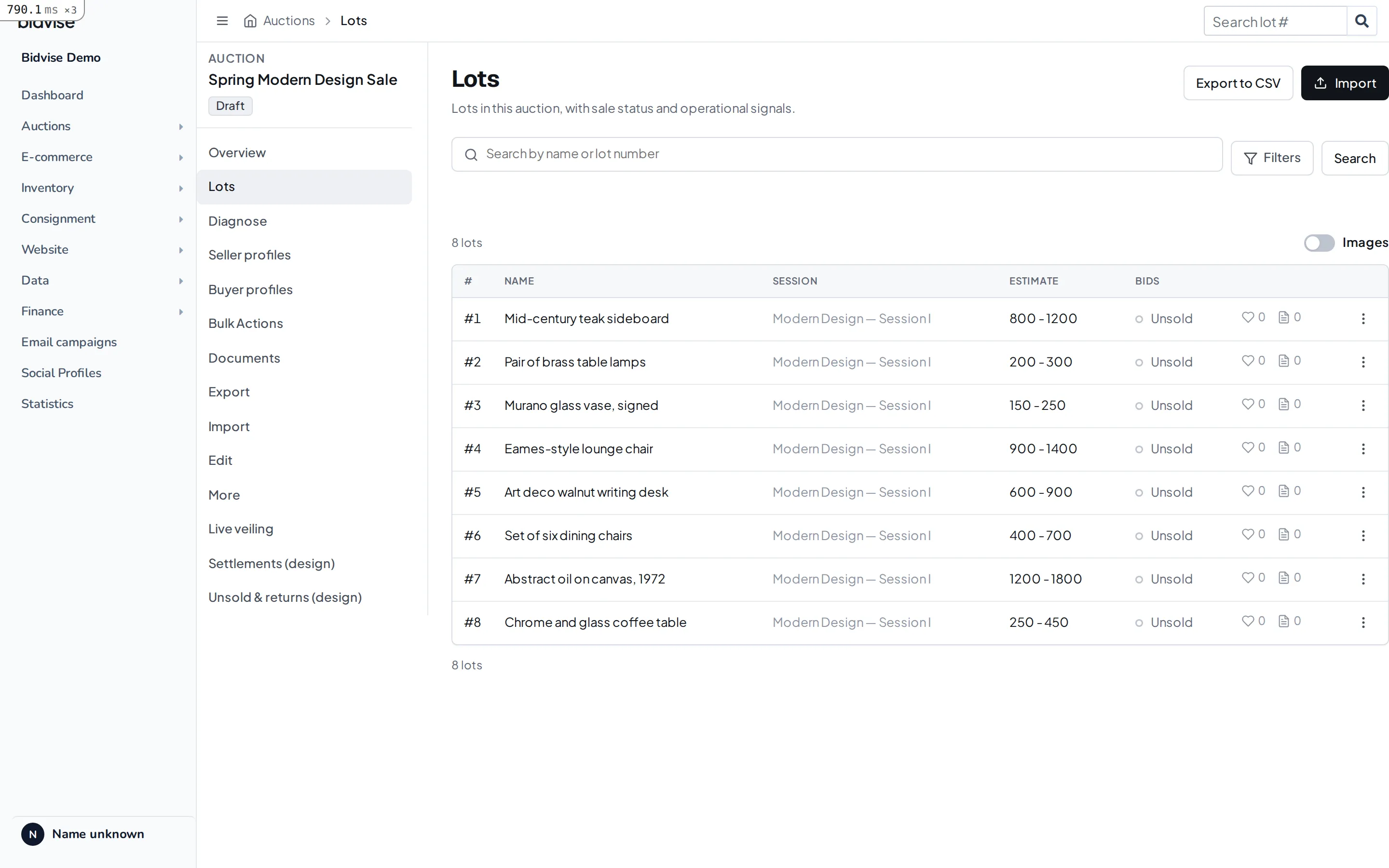
Open the import wizard
From an auction, open its Lots page and choose Import (then New import). Every import you run is listed here with its file name, status, and row count, so you can reopen a past run and see what it did.
1. Upload your file
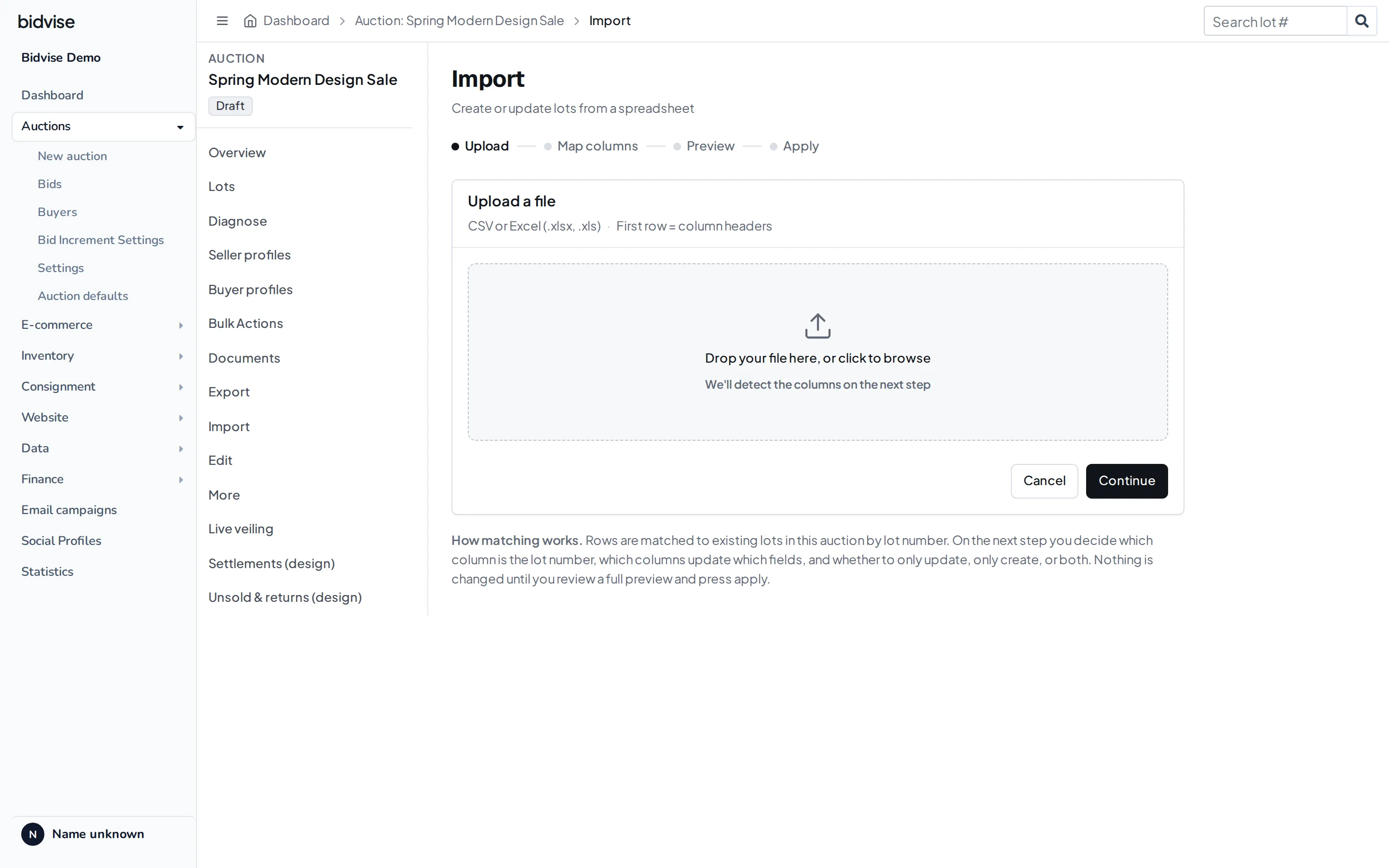
Drop a CSV or Excel file (.xlsx, .xls) onto the upload area, or click to browse. The first row must be your column headers - Bidvise reads those headers to offer them for mapping on the next step.
A few minutes of prep pays off: one column should hold the lot number (that’s how rows find their lot), and each other column should be one field you want to update - name, description, estimate, and so on.
A file can hold up to 20,000 rows; if yours is larger, split it into smaller files and run them one after another. You don’t need to worry about the delimiter - comma and semicolon CSVs (the latter common from Dutch Excel) are both detected automatically.
2. Map columns and rules
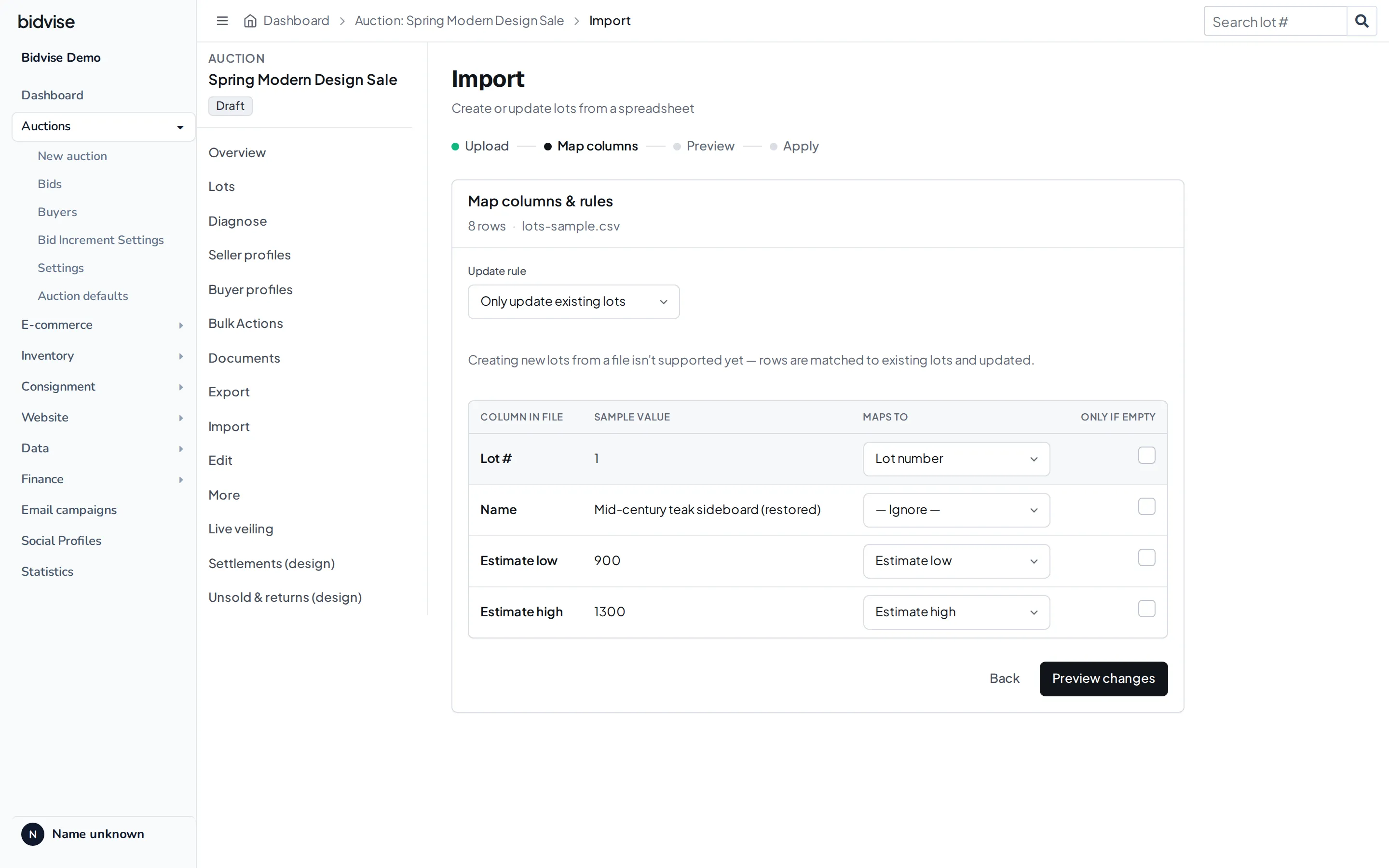
This is where you connect your spreadsheet to Bidvise. Each row of the table is one column from your file, with a sample value from the first data row, and a Maps to dropdown where you choose the field it should update. Bidvise auto-detects common headers (for example Lot #, Naam/Name, Omschrijving/Description) and pre-selects them; anything you leave as - Ignore - is left untouched.
Two things to set here:
- Lot number - the match key. One column must map to Lot number. That’s how each row finds the lot it belongs to. If nothing is mapped to the lot number, Bidvise won’t let you continue.
- Update rule. For lots this is currently Only update existing lots - matched lots are updated, and rows with no match are skipped.
Per-column, you can tick Only if empty so a column only fills in fields that are currently blank, instead of overwriting values that are already set - useful when you’re enriching a catalogue rather than correcting it.
If your site has more than one language, text fields like name and description appear once per language in the dropdown (e.g. “Name (English)”, “Name (Dutch)”). Pick the variant that matches the language of your column, and that text is written for that language.
When you continue, Bidvise matches every row and works out what would change - then shows you. A brief indicator covers the short waits while it works (“Reading your file…” after upload, “Analyzing your rows…” before the preview), so a large file never looks frozen.
3. Preview every change
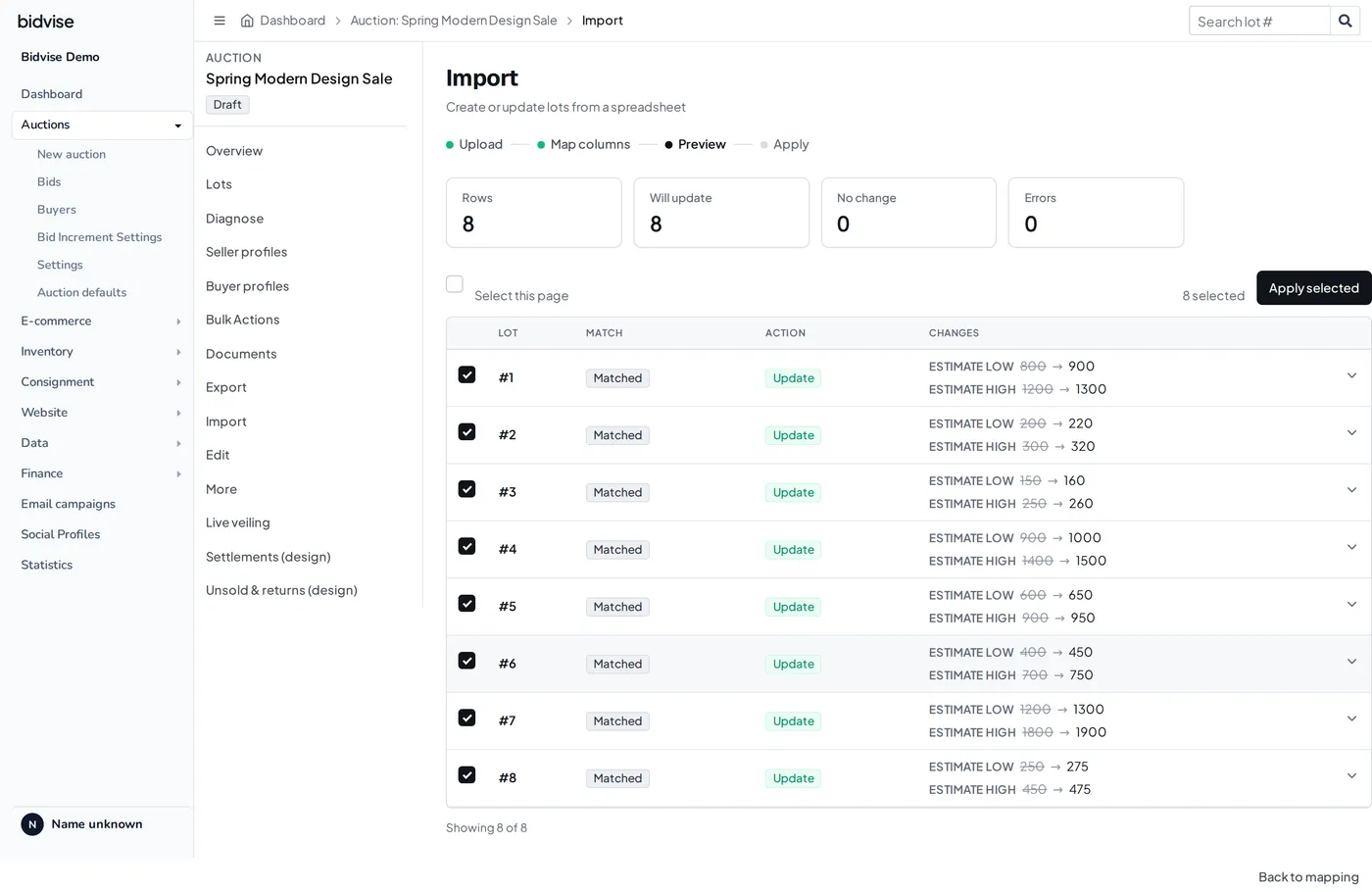
The preview is the heart of the feature: it shows exactly what will happen to every row before anything is saved. At the top, a quick tally - Rows, Will update, No change, Errors.
Each row in the table shows:
- the lot it matched (its number and current name), or the raw value if it didn’t match;
- a match badge - Matched, No match, Ambiguous, or Conflict;
- an action badge - Update, Skip, or Error;
- the changes - a field-by-field diff of old value → new value. Click a row to expand the full detail.
Every actionable row has a checkbox. Long files are paginated (100 rows per page, with a pager at the bottom showing “Showing 100 of 700”), so Select this page ticks the rows you’re currently looking at, and your choices are remembered as you page through - a running “N selected” indicator next to the Apply selected button always shows the true total across every page. Untick any row you don’t want to include. Rows that can’t be applied (no match, an error) are shown but not selectable, so you can see what was left out and why. If something looks wrong, go Back to mapping and adjust.
4. Apply
Press Apply selected and Bidvise applies the changes in the background, so a big file doesn’t tie up your screen. A progress bar shows how many rows are done (142 / 142). When it finishes you get a summary - “Done. 142 lots updated.” - and, if any rows failed, a list of which rows and why.
Below the summary, the run keeps a What changed record: every applied row with its before → after diff, plus any failures and their reason. Reopen the import from the Import list at any time to see exactly what that run did.
How matching works
Rows find their lot by lot number, within this auction. That gives a few outcomes you’ll see as badges in the preview:
- Matched - exactly one lot in the auction has that number. It will be updated.
- No match - no lot has that number. Under the current update-only rule, the row is skipped.
- Ambiguous - more than one lot in the auction has that number. The row is flagged (it counts under Errors in the preview) and can’t be applied until the duplicate lot numbers are sorted out.
- Conflict - two rows fight over the same target, so Bidvise refuses to guess which wins and flags both. This happens when the same lot number appears more than once in your file, or when two rows would write different values to the same underlying item (remember one item can sit behind more than one lot). Give the conflicting rows consistent values, or remove the duplicate, and re-upload.
One safety detail worth knowing: Bidvise re-checks each lot at the moment it applies, not just at preview. If a lot was deleted, renumbered, or moved to another auction between your preview and your apply, that row is recorded as failed instead of quietly updating the wrong lot.
What you can update
The columns you can map to (for lots in an auction):
| Group | Field | Notes |
|---|---|---|
| Match by | Lot number | Required - this is how rows find their lot. |
| Item | Name, Description, Condition, Dimensions | Text; mappable per language on multilingual sites. |
| Item | Estimate low, Estimate high, Start bid | Whole numbers. |
| Item | Commission % | A percentage (decimals allowed). |
| Item | Reference / SKU | Your own identifier on the item. |
| Lot | Active (published), Featured | Yes/no - accepts yes/no, true/false, 1/0 (and Dutch ja/nee). |
Name, description, condition, and dimensions live on the item (the catalogue object), while active and featured live on the lot (the item’s placement in this auction). The import writes each to the right place automatically - you just map the column.
Good to know
- Nothing changes until you apply. Uploading and previewing are safe; you can always back out.
- Update-only for now. New lots aren’t created from a file yet - see the note at the top.
- A bad row won’t sink the run. Rows are applied independently; if one fails, the rest still go through and the failure is reported.
- One file, up to 20,000 rows. Larger files are turned away with a message asking you to split them - run the pieces one after another.
- Past runs stay listed on the Import screen - reopen any run to see its full What changed record: which lots were updated, the exact diffs, and any failures.